
Before you throw your Roku remote across the room, try this simple reboot trick.

That frozen loading screen is no match for this ridiculously easy remote control cheat code.
Is there anything more infuriating than your Roku freezing right at the best part of a movie? If you’ve been dealing with endless buffering, sluggish menus, or random restarts, don’t throw your remote at the TV just yet. Your device probably isn’t broken; it’s just crying out for a little attention.
Before you waste time with tech support or start shopping for a new one, try the ridiculously simple fixes that actually work. Things like clearing the cache, checking for a software update, or-and I know this sounds crazy-unplugging it for a minute can solve a shocking number of problems. If your Roku is a bit older, it might just be begging you to delete those 12 channels you never watch
So, instead of suffering through another stuttering episode of your favorite show, spend five minutes giving your Roku a quick refresh. You’d be surprised how a few tweaks can get it back to streaming smoothly.
How to clear your Roku TV cache
This process isn’t as straightforward on a Roku TV as it is on other devices. Following these steps will improve your device’s performance and clear its cache. Keep in mind that your Roku TV will restart.
Reset Roku TV in the settings
- From the main menu, go to the end of the list and select the Settings menu.
- Within Settings, find System and open it.
- Scroll down to Power and select it.
- Select System Restart and click Restart to confirm.
This will turn off your TV and clear the cache but it will not factory reset it. Your Roku TV should turn back on in about 30 seconds. If this doesn’t work, you can try using the hidden remote function to reset the TV instead.
Reset Roku TV with remote
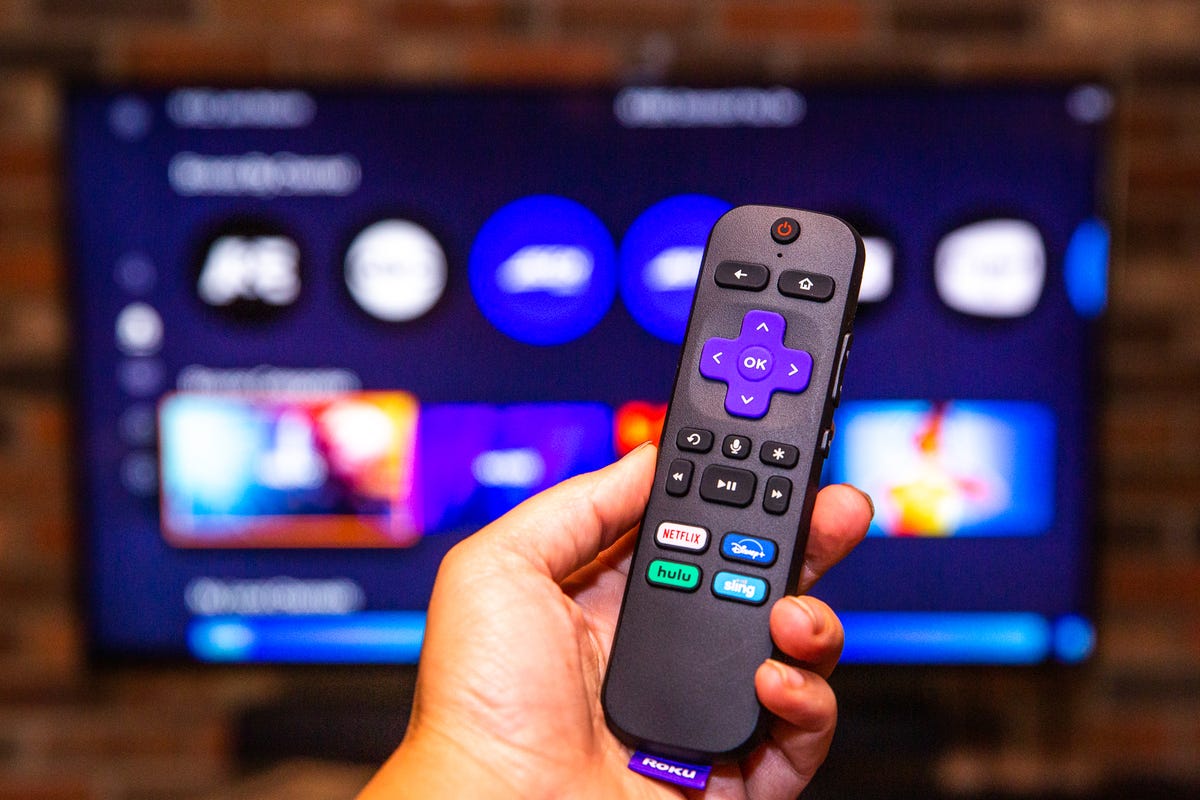
- Go to the Home menu and make sure the highlight is over the Home option on the left.
- On your remote push the Home button five times.
- Push the Up arrow once.
- Push the Rewind button twice.
- Push the Fast Forward button twice.
- Wait for your Roku to restart.
Uninstall the app
- Go to the Home menu and make sure the highlight is over the Home option on the left.
- On your remote push the Home button five times.
- Push the Up arrow once.
- Push the Rewind button twice.
- Push the Fast Forward button twice.
- Wait for your Roku to restart.
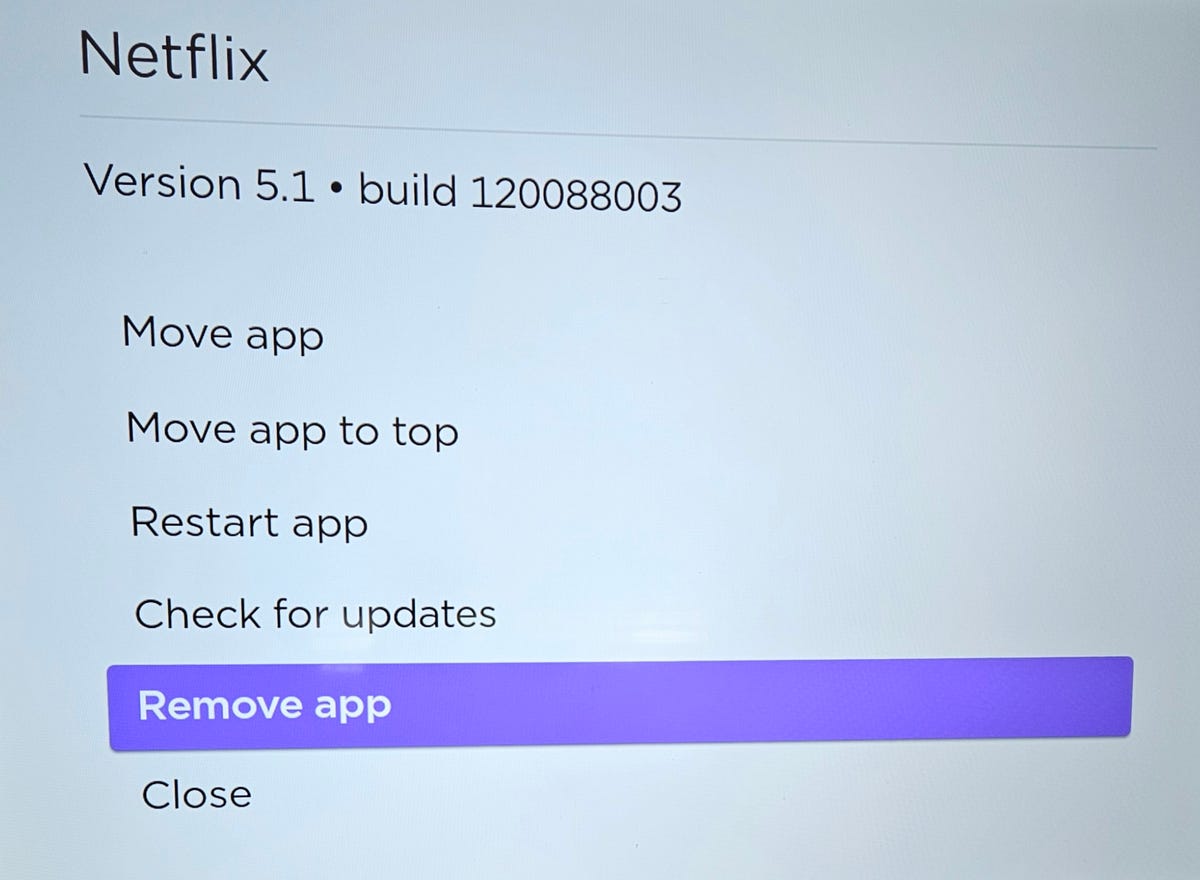
Uninstall the app
- From the menu, select Settings.
- Find System and select it.
- At the bottom of the System menu, go to Advanced System Settings.
- Select Factory Reset and enter the code underneath the number pad on the right to confirm reset.
For more coverage, read about how you can set up a VPN on Roku and learn how your streaming device might be tracking you.